
Human-in-the-Loop
Keep control over AI actions with notifications and approval flows.
Human-in-the-Loop
Not every AI action should run automatically. ToolPlex lets you add oversight to automations so humans stay in control of sensitive operations.
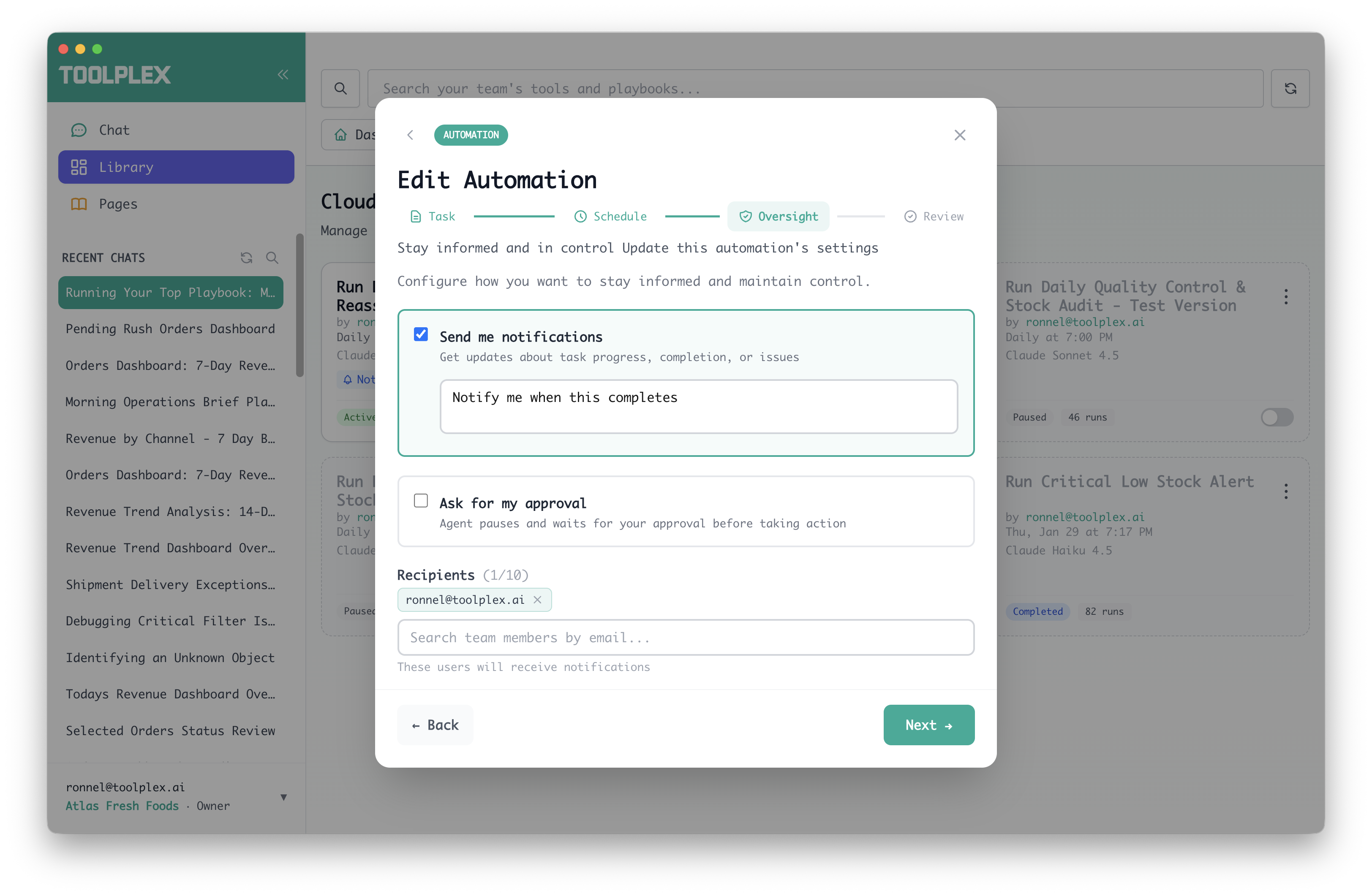
There are two types of oversight: notifications and approvals. You can enable either or both when creating an automation.
Notifications
Notifications inform your team about what the automation is doing without pausing execution. The AI continues working while recipients receive updates.
Use notifications for:
- Progress updates on long-running workflows
- Completion summaries
- Alerts when something unexpected happens
Setting up notifications
In Step 3 (Oversight) of the automation wizard:
- Toggle Notifications on
- Add notification instructions — tell the AI when and what to notify about (e.g., "Notify the team when the report is ready" or "Send an alert if any errors occur")
- Select recipients from your organization members
Recipients receive notifications via email.
Approvals
Approvals pause the automation and wait for a human decision before continuing. The AI will not proceed until someone responds.
Use approvals for:
- Financial transactions
- Data modifications
- External communications
- Any action where a mistake would be costly
Setting up approvals
In Step 3 (Oversight) of the automation wizard:
- Toggle Approvals on
- Add approval instructions — tell the AI when to request approval (e.g., "Ask for approval before sending any emails" or "Get sign-off on amounts over $1,000")
- Select recipients who can approve or deny requests
- Set an expiration timeout — how long to wait before the request expires (default: 24 hours)
Decision types
When the AI requests approval, it can ask for different types of responses:
| Type | Description |
|---|---|
| Yes / No | Simple approve or deny |
| Multiple choice | Select from a set of options the AI provides |
| Freeform | Type a custom response or instructions |
| Deny with reason | Reject the action and explain why |
The AI chooses the appropriate decision type based on the situation and your approval instructions.
What happens when a request expires
If no one responds within the expiration window, the request is marked as expired and the automation run ends. You can see expired requests in the run history.
Tool-level controls
Instead of requiring approval for every action, you can target specific tools.
Per-tool approval in automations
In Step 3 of the automation wizard, after enabling approvals:
- Click Advanced to expand tool-level restrictions
- You'll see a list of tools used by the linked playbook
- Toggle which tools require approval
Only calls to restricted tools will pause for approval. All other tools execute normally.
Organization-wide tool confirmation
Admins can require approval for specific tools across all chat sessions (not just automations) from the Org Settings panel. See Organizations > Tool confirmation.
When tool confirmation is enabled, the AI pauses before executing the tool and shows:
- The tool name
- The arguments it plans to pass
You can approve as-is, edit the arguments, or deny the call.
Monitoring
Run history
Every automation run is logged in the Run history tab. Each entry shows:
- Status: completed, failed, running, awaiting response, timed out, cancelled
- Duration: how long the run took
- Tool calls: which tools were invoked and whether they succeeded
- Decisions: any approval requests and their responses
Click a run to see the full transcript, including the AI's reasoning, tool calls, and any points where it paused for human input.
Live streaming
Active automation runs can be watched in real time. Open a running automation to see messages, tool calls, and approval requests as they happen.
Awaiting count
Automation cards show an awaiting badge when there are pending approval requests. This makes it easy to spot automations that need attention.
Fully autonomous mode
If you don't need oversight, leave both notifications and approvals disabled. The automation will run end-to-end without human intervention.