
Chat
Talk to AI agents that can use your tools, search the web, and attach files.
Chat
Chat is the main interface for interacting with AI agents in ToolPlex. Your agents can execute tools, reference playbooks, attach files, and search the web — all from a single conversation.
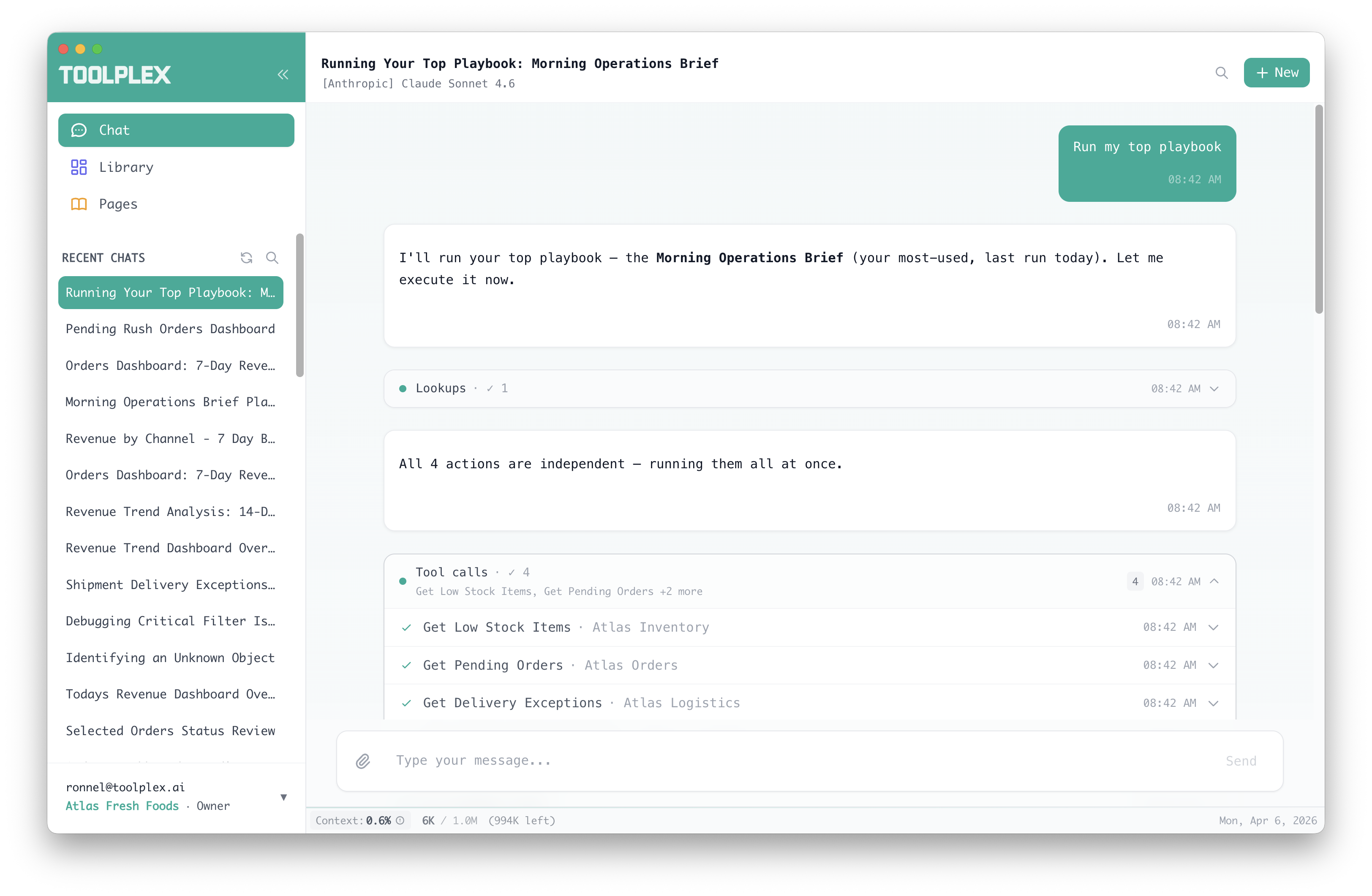
Starting a conversation
Open ToolPlex Desktop and click New Chat. Type a message and the AI will respond using whatever tools and context are available to you.
Selecting a model
Click the model selector in the chat header to choose which AI model to use.
Models are included with your subscription. Free credits are provided to get started, then usage is billed through your plan.
If your organization has set a default model, new conversations will start with that model. Admins can also restrict which models are available to team members.
Temperature
Some models support adjustable temperature. Click the temperature control next to the model selector to tune creativity vs. precision. Temperature settings are saved per model.
File attachments
Drag and drop files into the chat input, or click the attachment button to browse.
Supported file types:
- Images: PNG, JPG, GIF, WebP, SVG, BMP
- Documents: PDF, TXT, Markdown, JSON, CSV, XML, HTML
- Office: DOCX, XLSX, PPTX (text is extracted automatically)
Large images are compressed automatically. The total attachment size per message is limited to 30 MB.
Not all models support all file types. If a file isn't compatible with your selected model, you'll see a warning before sending.
@ mentions
Type @ in the chat input to search for tools and playbooks by name.
Select a result from the dropdown to insert a reference. The AI will use the referenced tool or playbook as context for its response.
Organization members see tools from their approved list and playbooks shared with the team. Individual users see public search results.
Web search
The AI can search the web directly from chat to find up-to-date information. This is useful for questions about current events, documentation lookups, or anything outside the AI's training data.
Web search availability may depend on your organization's permissions.
Tool calls
When the AI needs to take an action — reading a file, calling an API, sending a message — it makes a tool call. You'll see the tool name and arguments displayed inline in the conversation, followed by the result.
Tool confirmation
If your organization requires approval for certain tools, the AI will pause and ask before executing. You can:
- Approve the call as-is
- Edit the arguments before approving
- Deny the call with an optional reason
Tool confirmation settings are managed by your organization admin in Org Settings.
Sharing a conversation
Click the share button in the chat header to share a conversation with your team. Shared sessions are read-only — recipients can view the full transcript but can't send messages.
Shared sessions can be opened from a link in ToolPlex Desktop. When you navigate away from a shared session, it's removed from your sidebar automatically.
Session management
Sidebar
The chat sidebar shows your recent conversations, sorted by last activity. Click any session to switch to it.
- Search: Filter sessions by title
- Pin: Star important conversations to keep them at the top
- Rename: Click the session title to edit it
- Delete: Remove a session from the ... menu
Older conversations are available via pagination.
Credits
If you're using ToolPlex managed models, your credit balance is shown in the app. You'll receive a warning when credits are running low.